NotionStats can only read pages and databases you explicitly share with the integration. Sub-pages and databases inside a shared page are shared automatically. There are two ways to do it — most users use the first one.
Option 1: From NotionStats (recommended) #
This is the most common flow, and every Connect Notion, Create and link, Choose pages in Notion, and Update the Notion connection button inside the app uses it.
You can start the flow from any of these places:
- Creating a new workspace — click Add new → Workspace, fill out the form, and click Create and link. If Notion is already connected, tick Also link this workspace to another Notion page instead.
- From a workspace's primary database window — on a workspace page, click the status chip (or Choose database), then Update the Notion connection to re-share it at the bottom of the window.
- From settings — open Settings and, in the Notion workspace card, click Manage connection.
- While creating a chart, milestone or calendar — click Couldn't find your database?, then click Share access in Notion (the green button with the Notion icon).
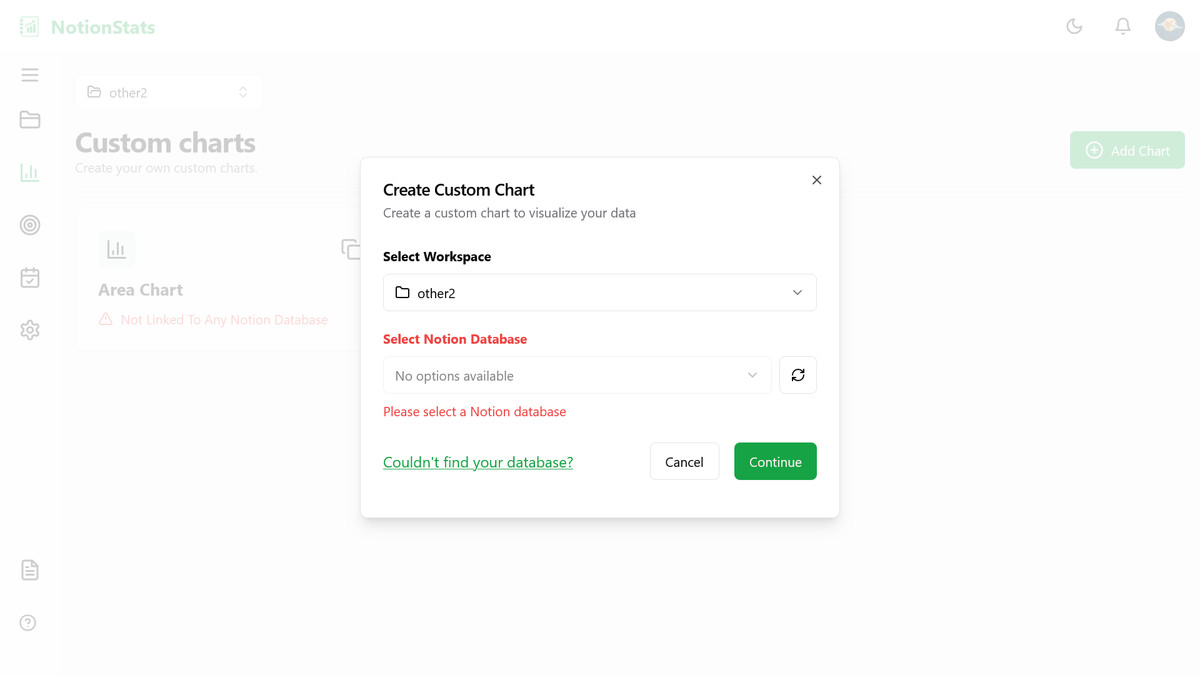
After you click any of those, Notion will open its connection page where you choose what to share:
- Click Select pages (or pick from existing pages) and check the page(s) that contain the database(s) you want NotionStats to read.
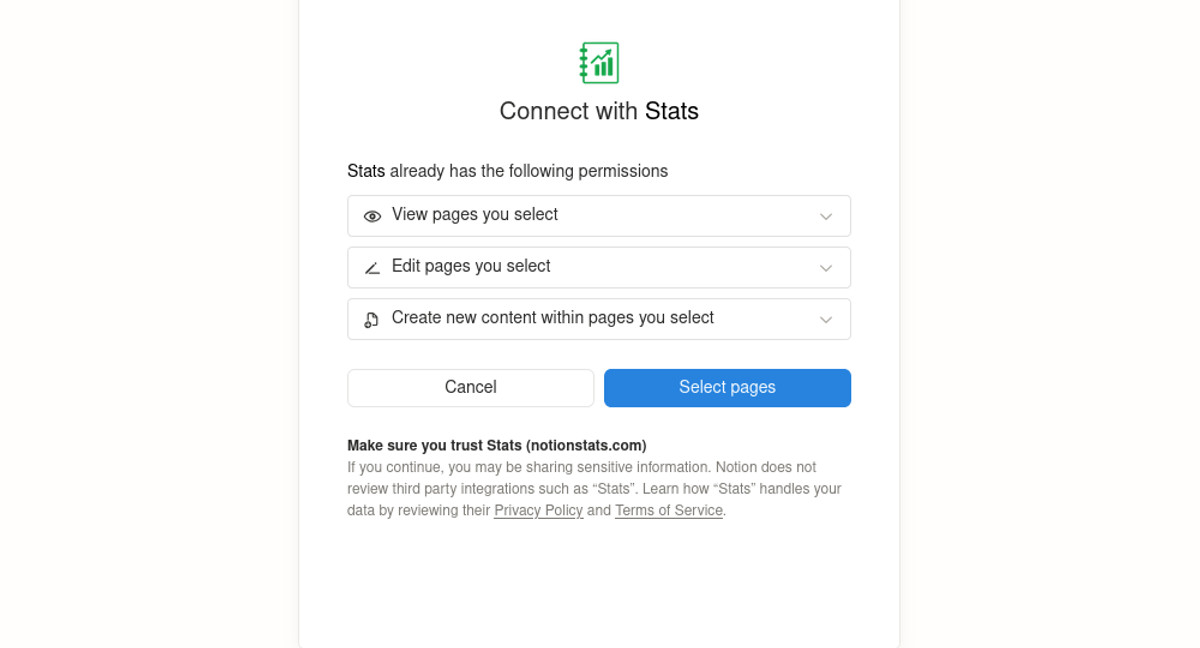
- Click Allow access.
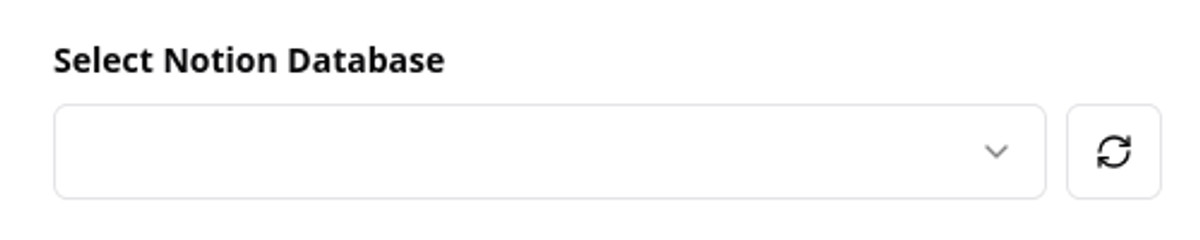
- You'll be redirected back to NotionStats — to the workspace you started from, when there is one — and your databases will appear in the database list. NotionStats waits for Notion to share them. If they still don't appear, click the refresh icon next to the dropdown.
Option 2: From inside Notion #
You can also share a single page directly from Notion without going through NotionStats:
- Open the page that contains your database in Notion.
- Click the ... menu in the top right corner of the page.
- Select Connections and search for Stats.
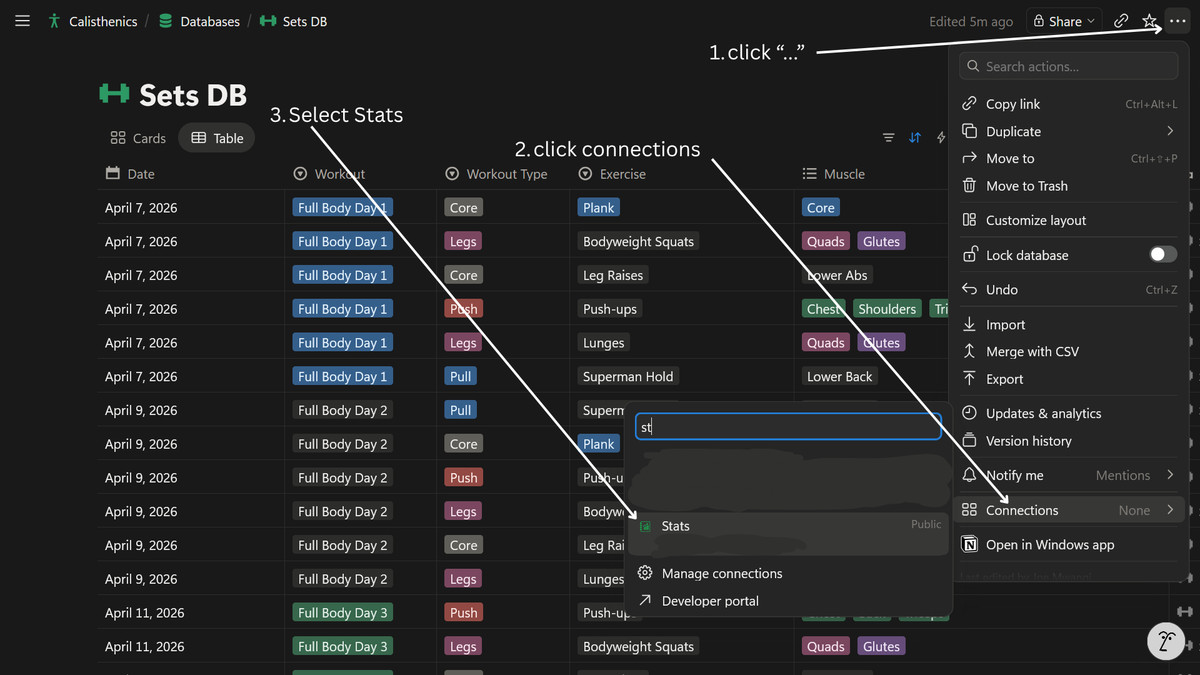
- Confirm access on the prompt that appears.
After either option, head back to NotionStats and click the refresh icon in the database dropdown to pick up the new database. If you still don't see it after a minute, double-check that the page you shared actually contains the database (or share the database directly). g